Forum
Introduction
The application provides a forum for each course, enabling students and instructors to engage in course-specific discussions.
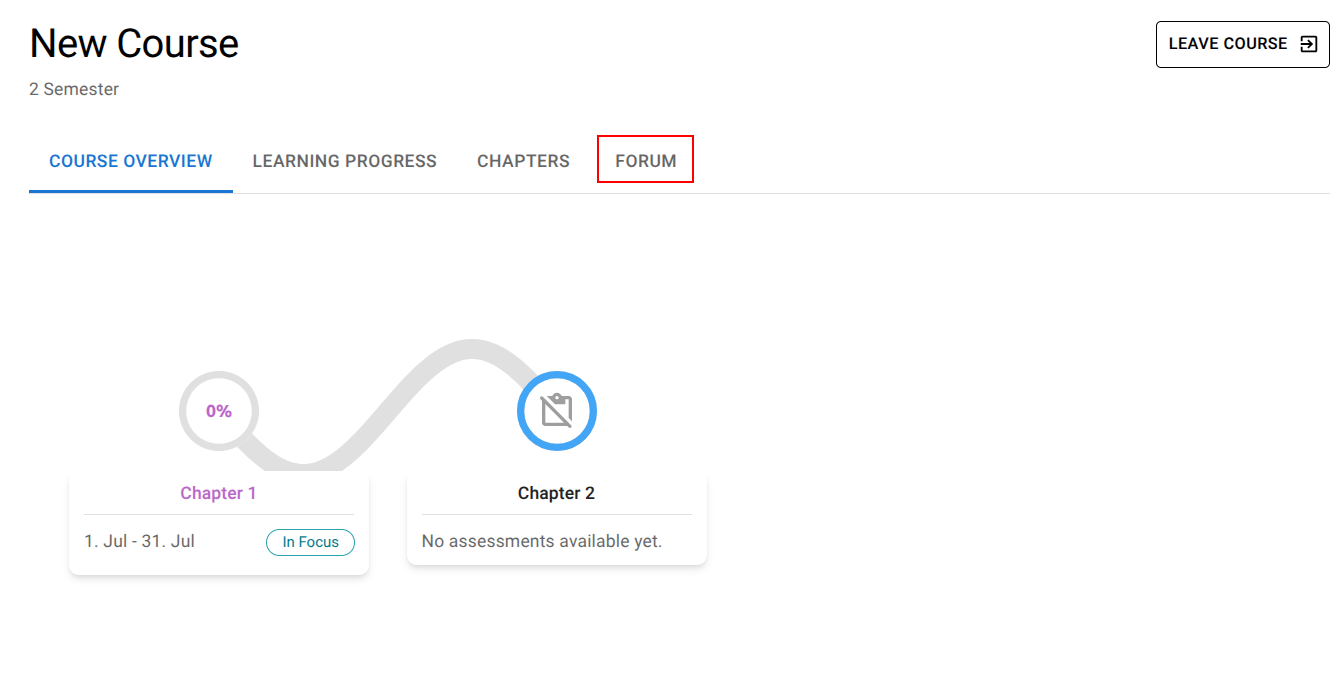
Open Forum
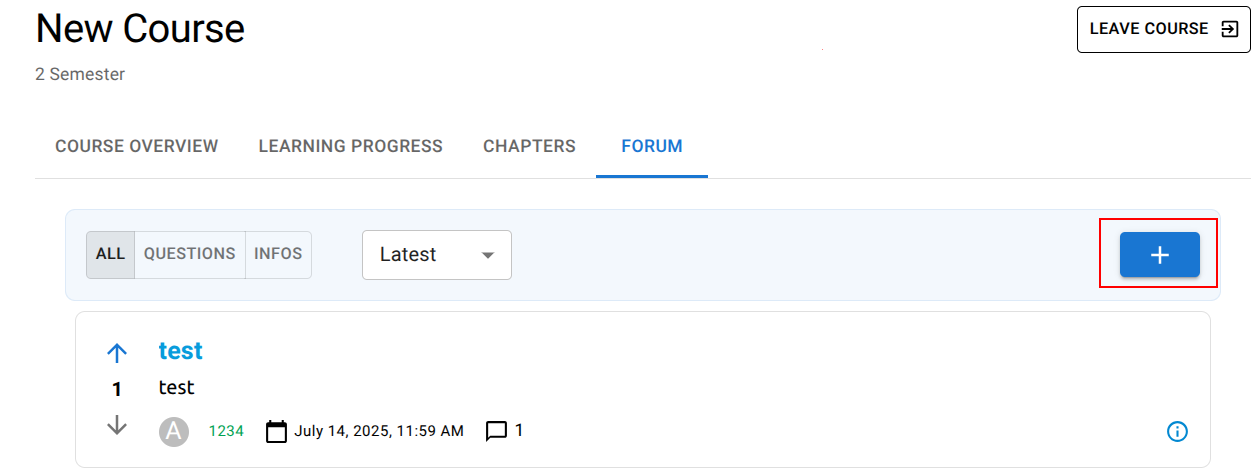
To access a course’s forum, select the course and navigate to the forum in the course header.
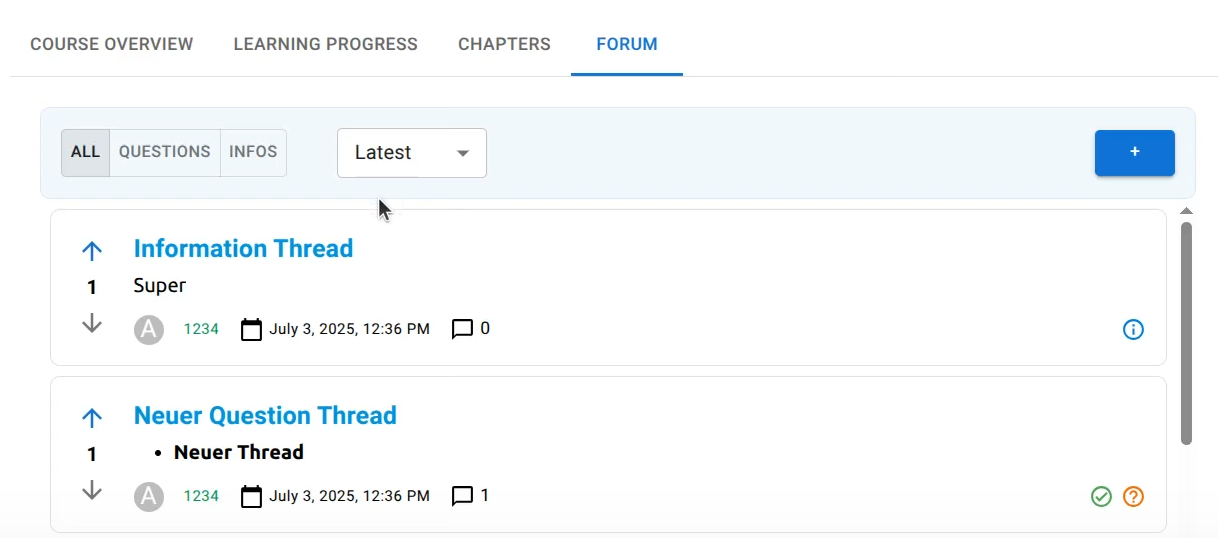
Forum Overview
After navigating to the forum, users are presented with an overview of all posted threads.
Users can utilize various filtering options to easily find relevant threads.
Threads are categorized into two types: Question Threads, where users can ask and answer questions, and Information Threads, which are used to share important updates
Each thread, along with its answers, can be upvoted or downvoted by users to indicate helpfulness or relevance.
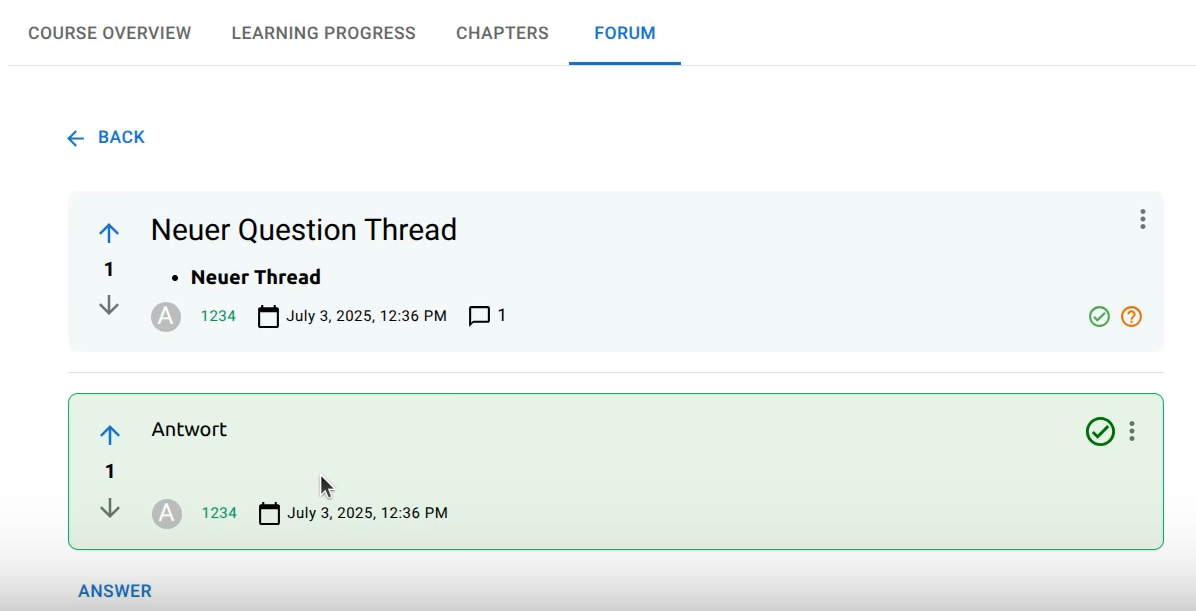
Selecting a Thread
Clicking on a thread opens a detailed view displaying all related answers and discussions.
Users can contribute to the discussion by adding new answers to a thread. They also have the ability to edit or delete their own answers.
The thread’s author has the option to mark one answer as the “best answer” to highlight the most helpful contribution.
Forum in the Media Content
New Threads can be created using the ‘+’ sign
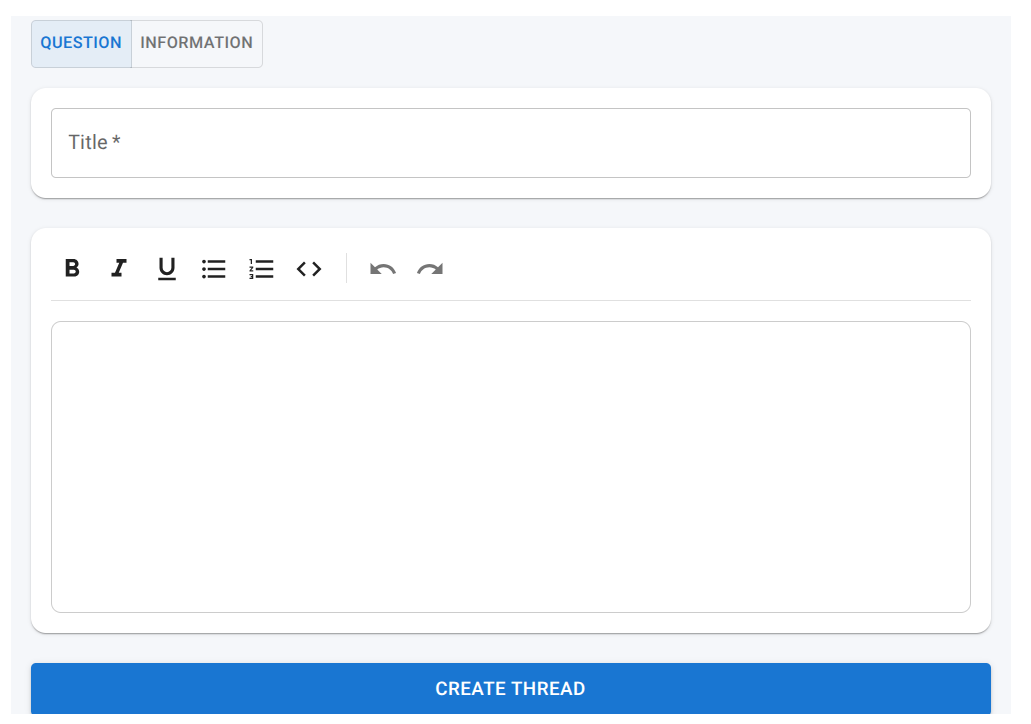
A new window will open where you can create a thread.
Title and content are required fields.
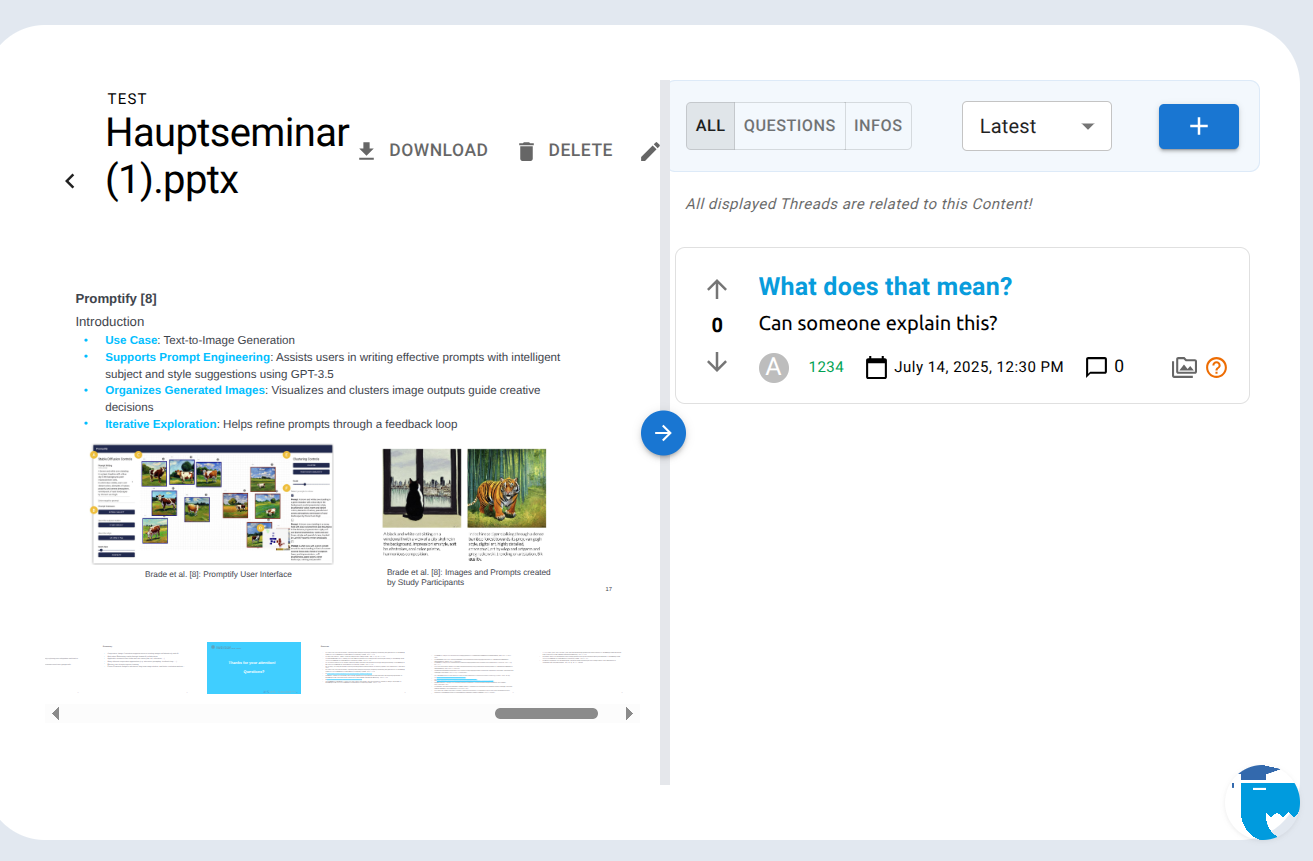
Forum in the Media Content
The forum can also be accessed from the media content by clicking the forum icon.
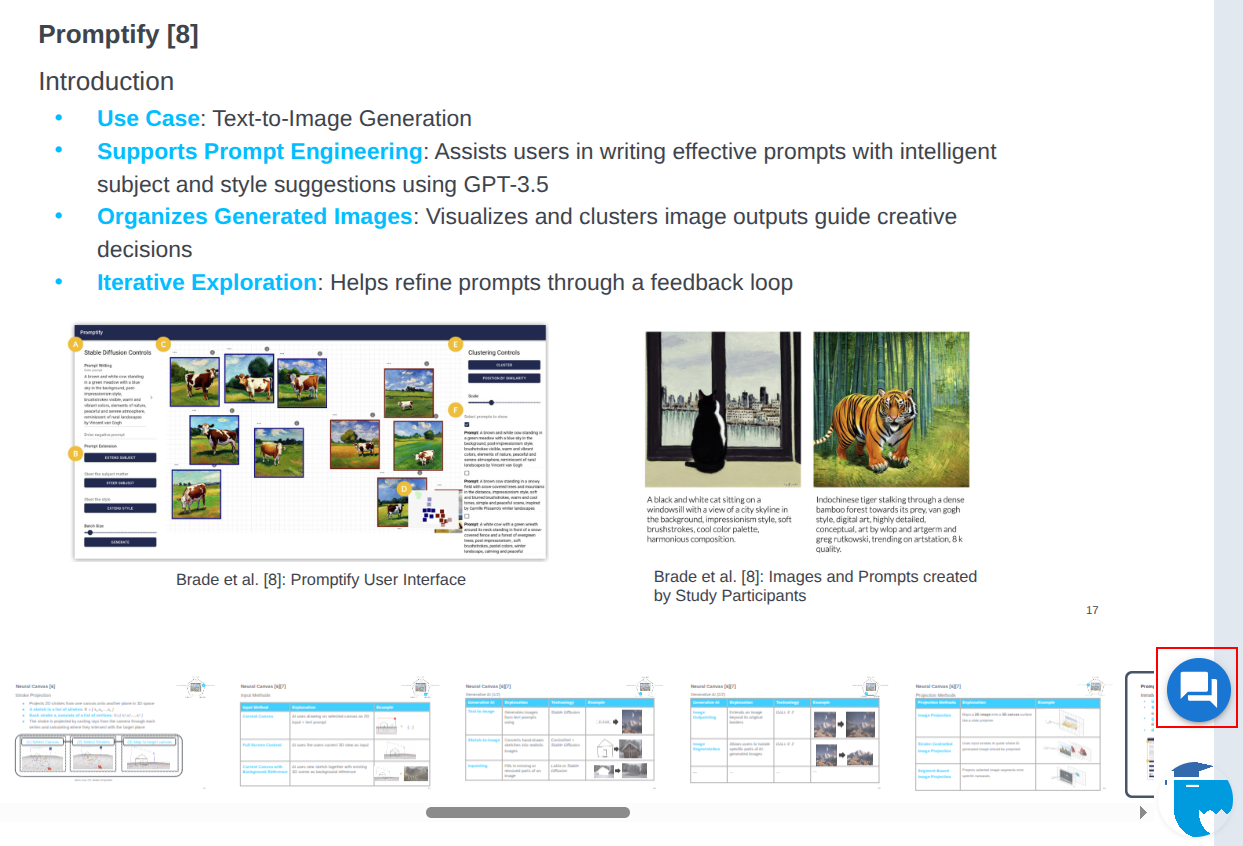
A resizable forum panel will appear next to the media content, displaying only posts related to that specific media.
Creating a new thread from here will automatically link it to the media content — note that the thread will still be visible in the general forum overview.