Setup Guide
After the deployment with terraform we have to configure keycloak and Minio for MEITREX. This guide illustrates steps 6 and 7 in the setup guide to assist users in setting up meitrex.
Step 6 Setup keycloak realm
We have to setup the keycloak realm. We simply navigate to the creator page and copy the contents of the realm file provided in this repository.
Open the keycloak endpoint. For our deployment the endpoint is accessible under
dev.meitrex.de/keycloak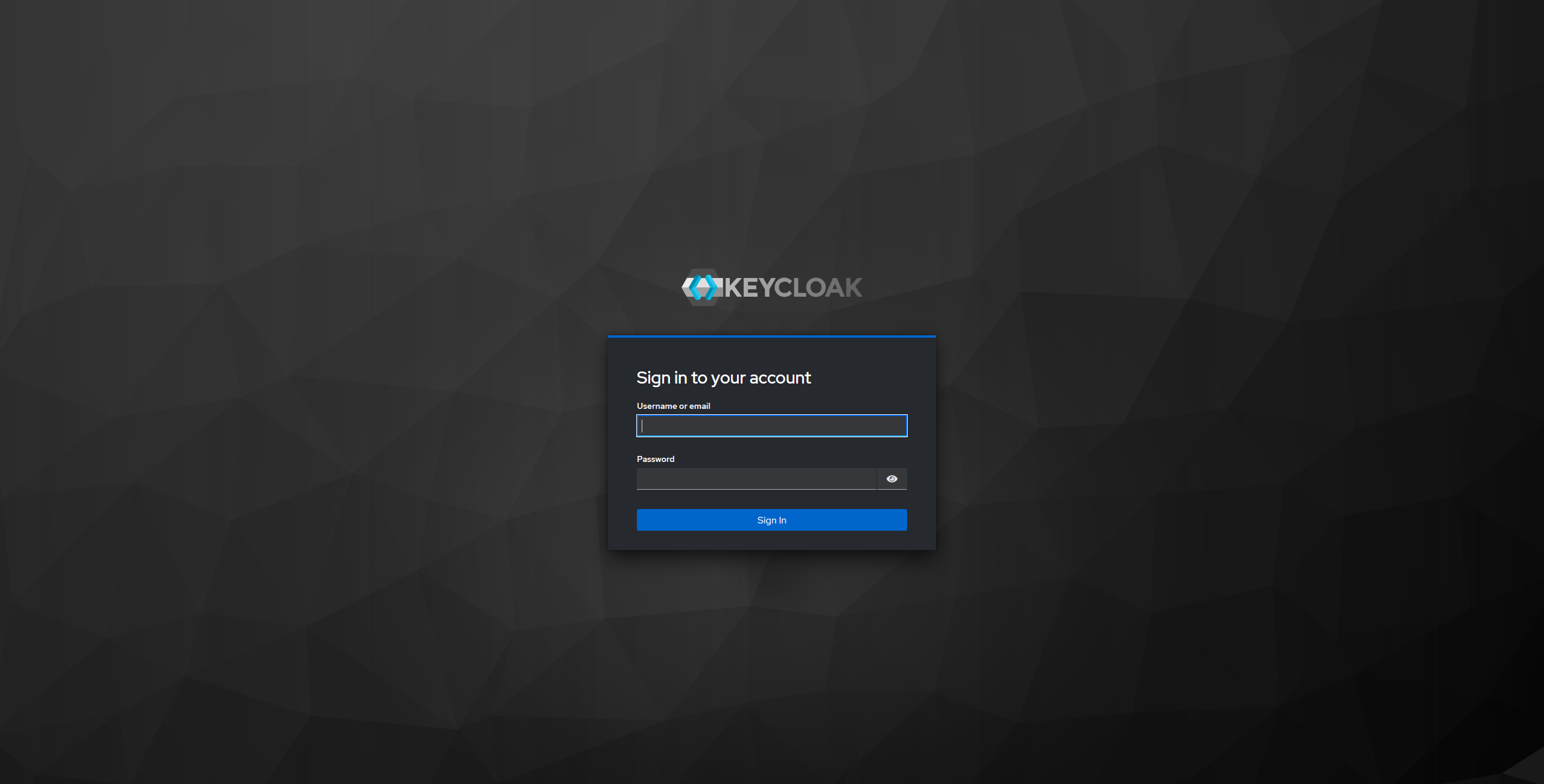
Login into Keycloak with the default user credentials set in the variables file.
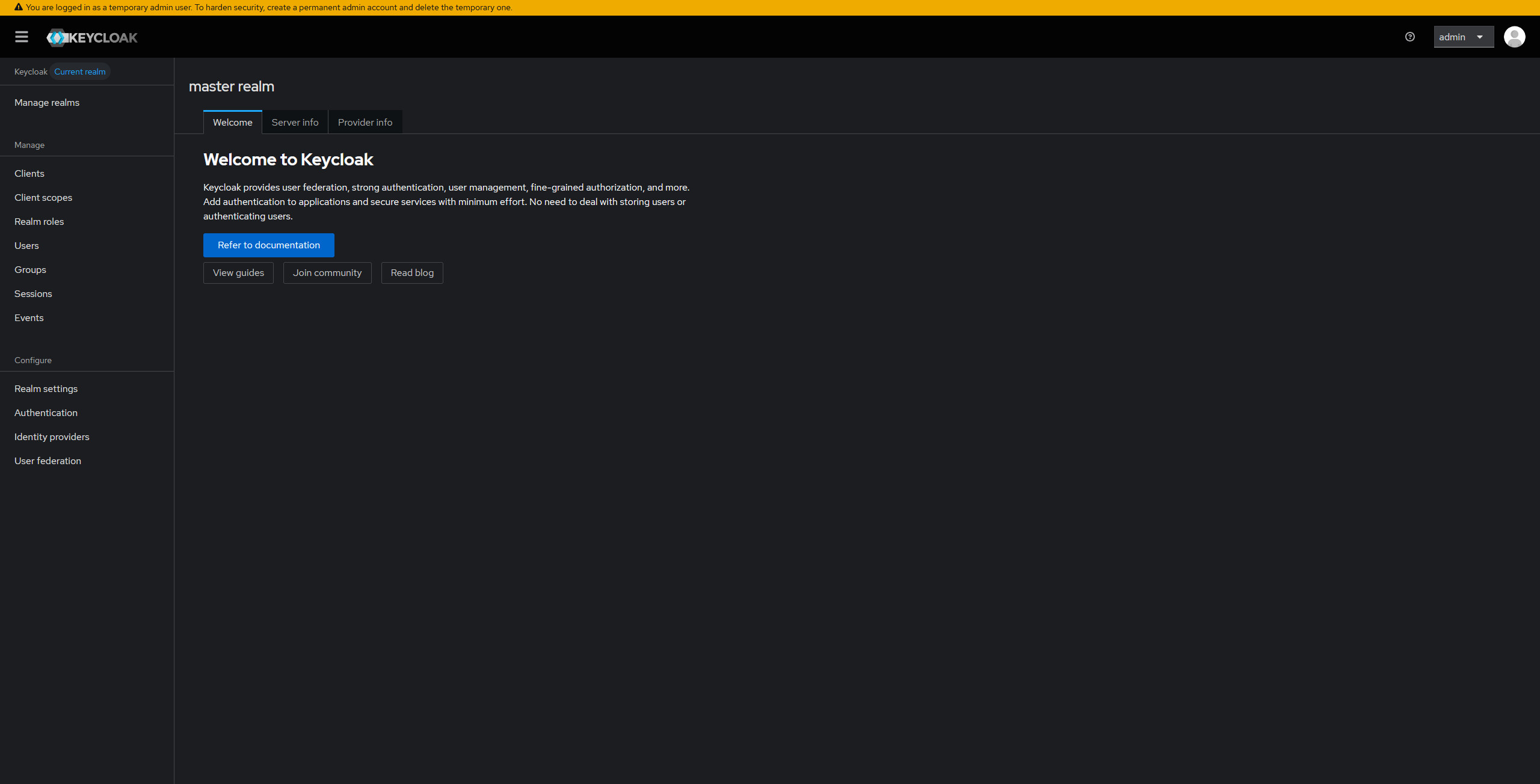
Click Manage realms page
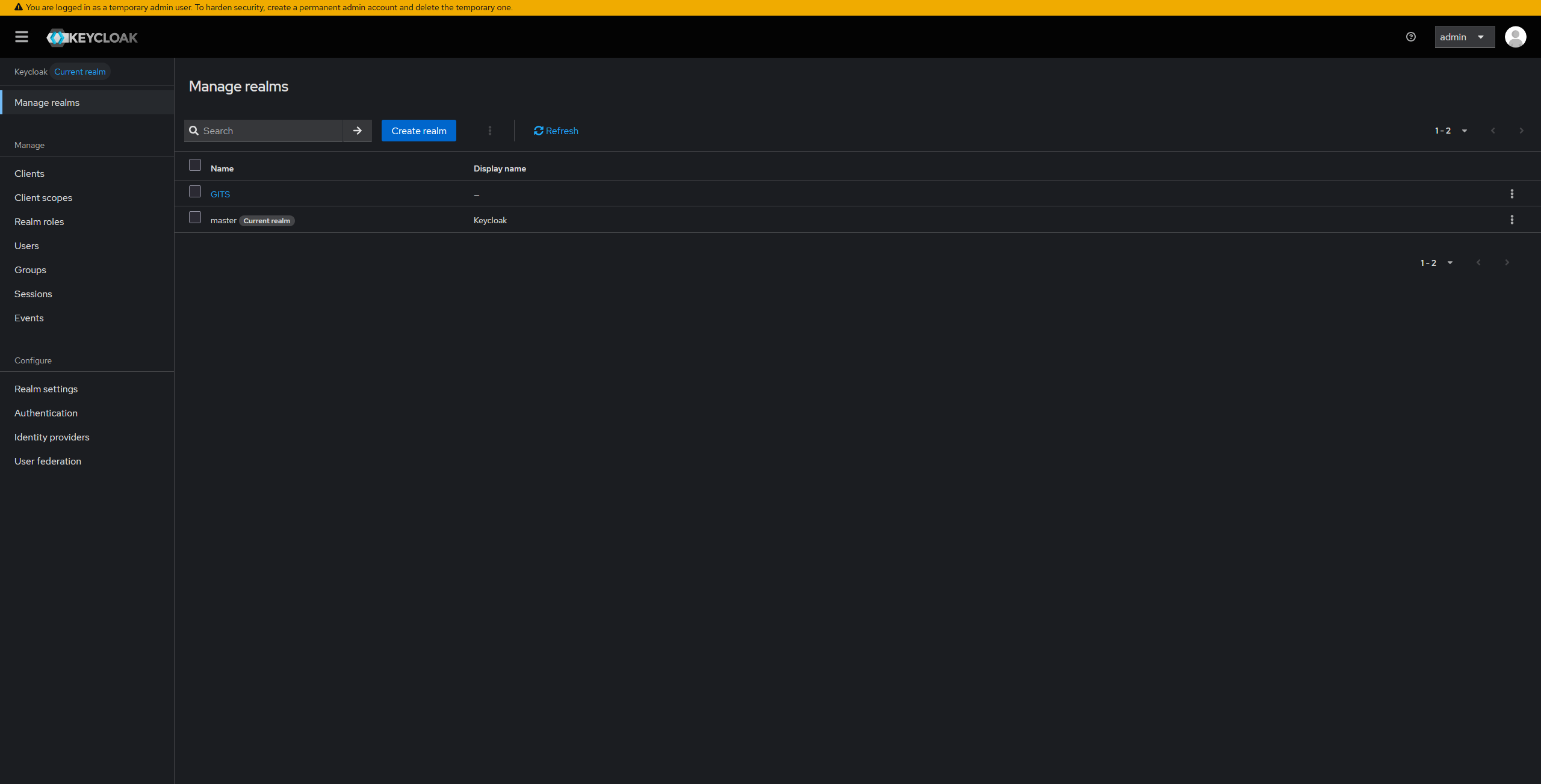
Click Create realm button
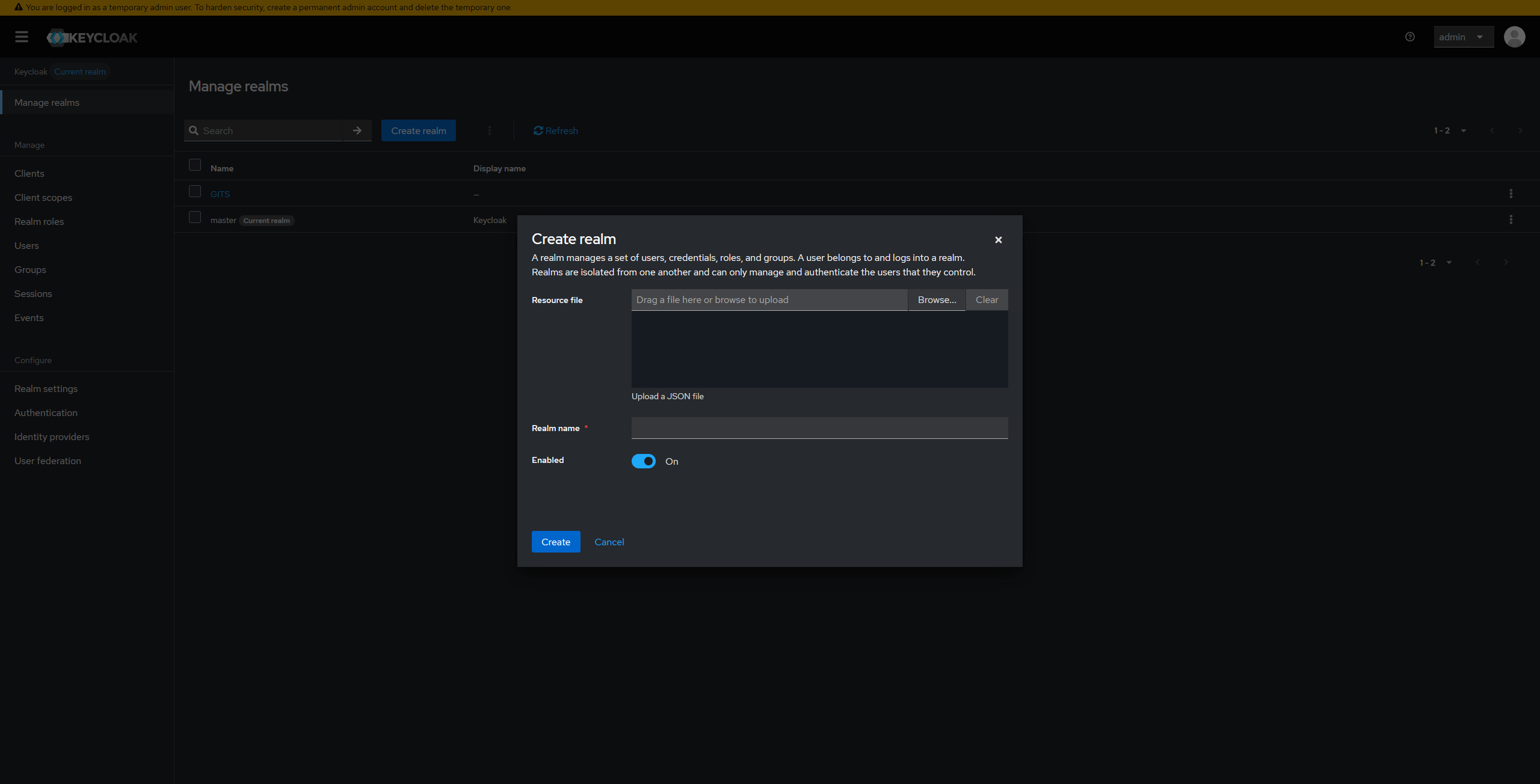
Import realm provided in this repository. Copy contents of GITS realm file into the form
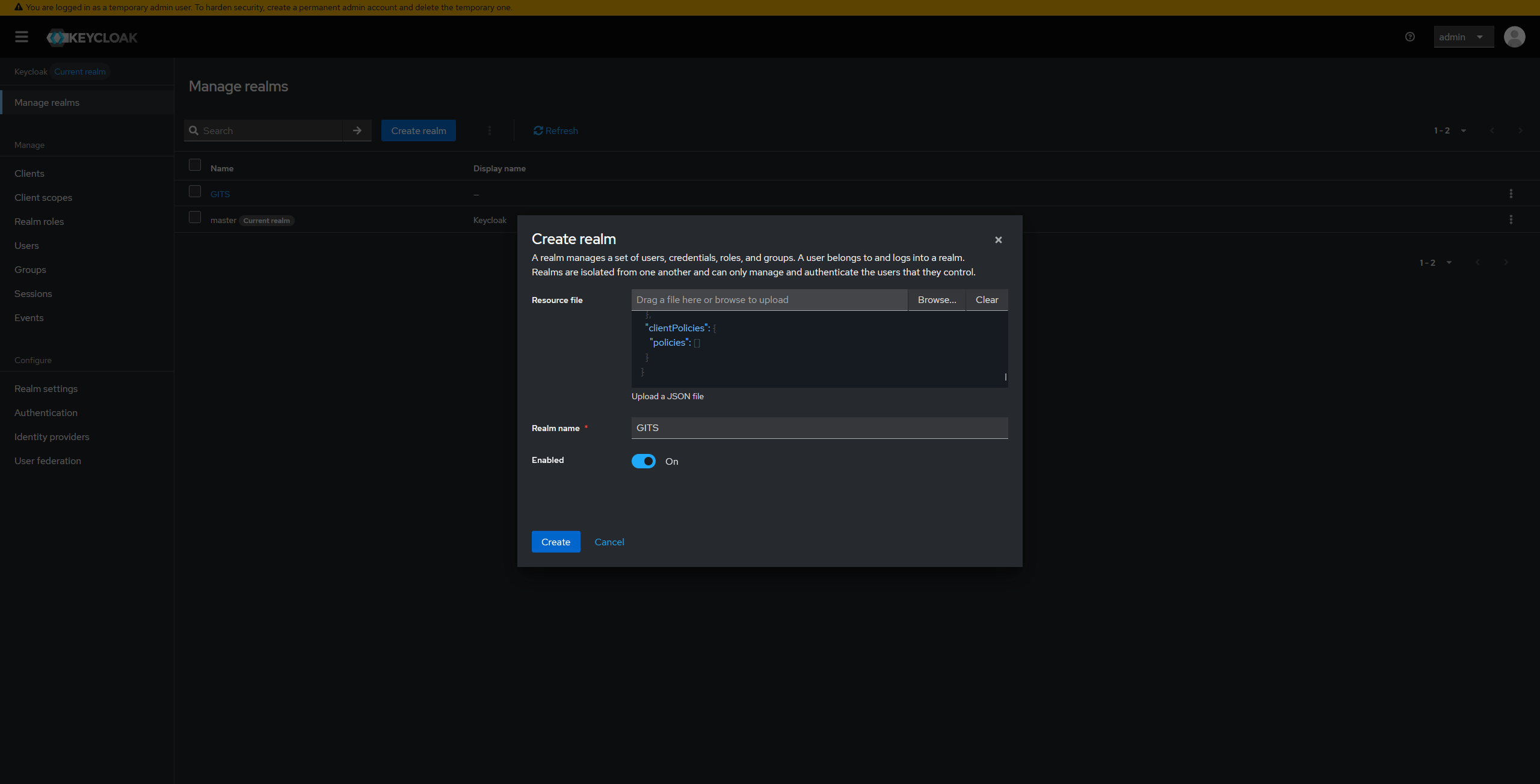
Press Create
Step 6 Setup webhook for AI Service
We need the webhook because if we upload a file MINIO will use the webhook to notify the DocProcAI Service to start processing the new content. The webhook is already defined and configured in the helm chart. Currently we cant automatically ad webhook to the buckets so we have to do it manually.
Open Minio endpoint. For our deployment the endpoint is accessible under
minio-dashboard.meitrex.de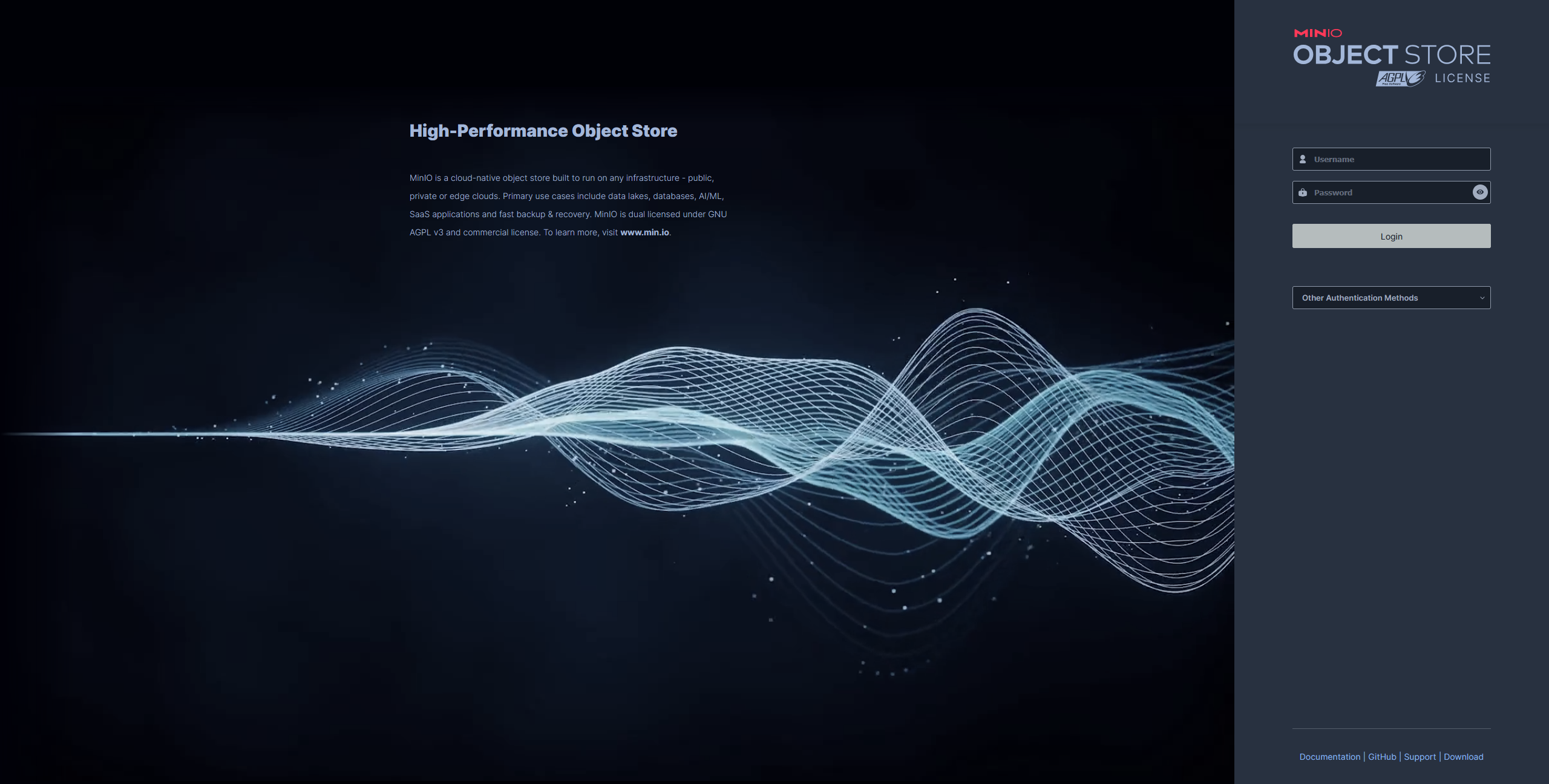
Login to MINIO with the default user credentials.
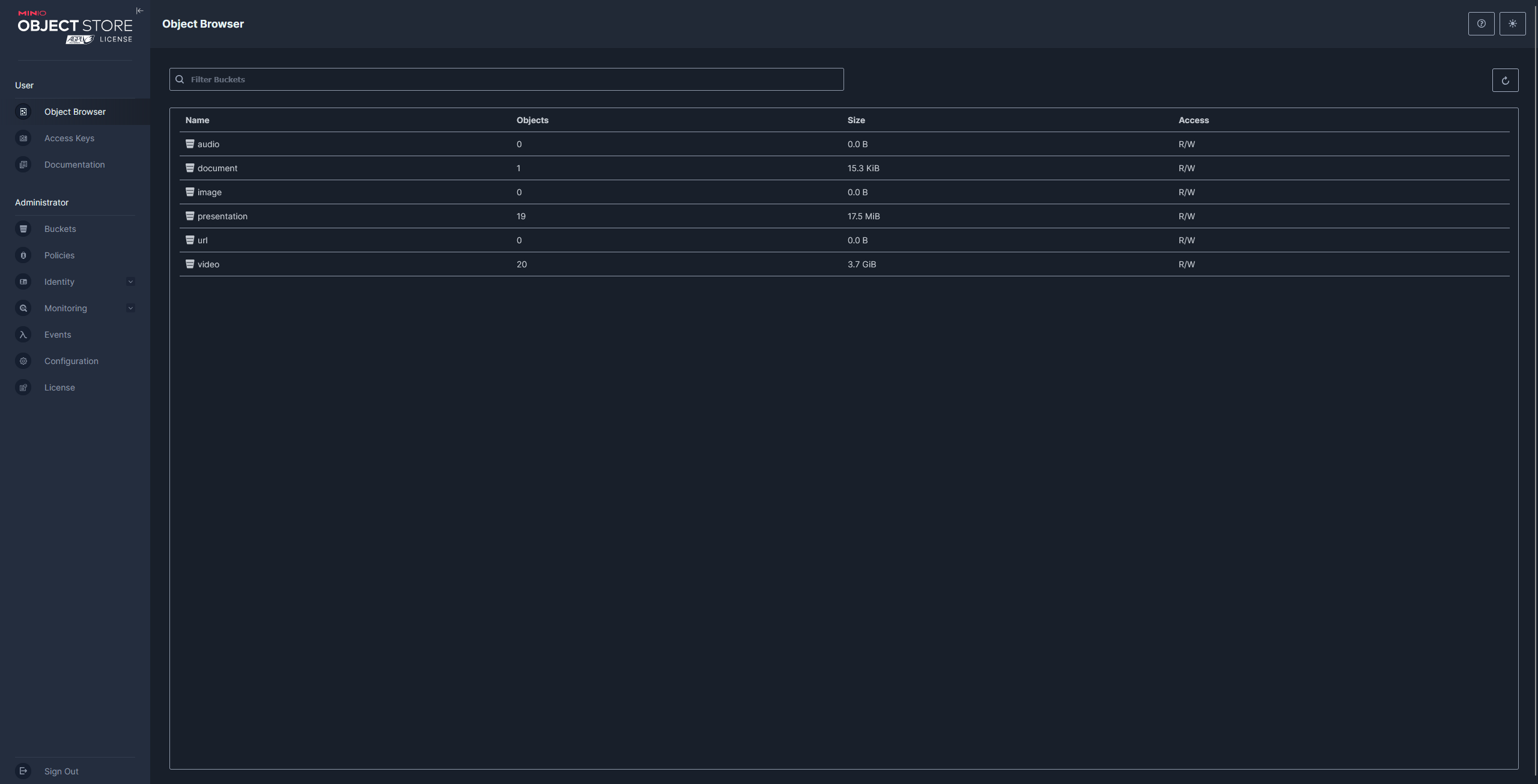
Select Buckets
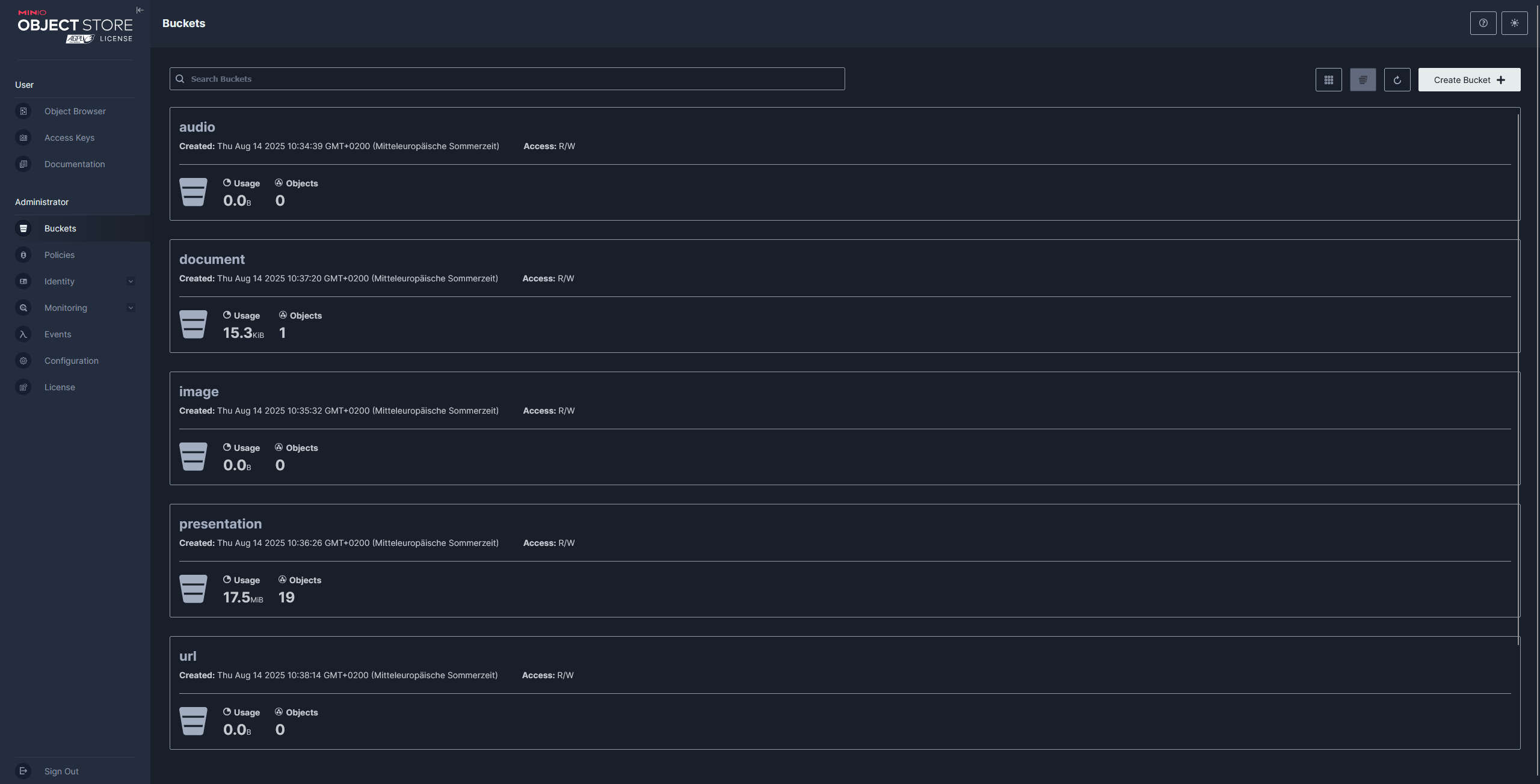
Select one bucket e.g. audio
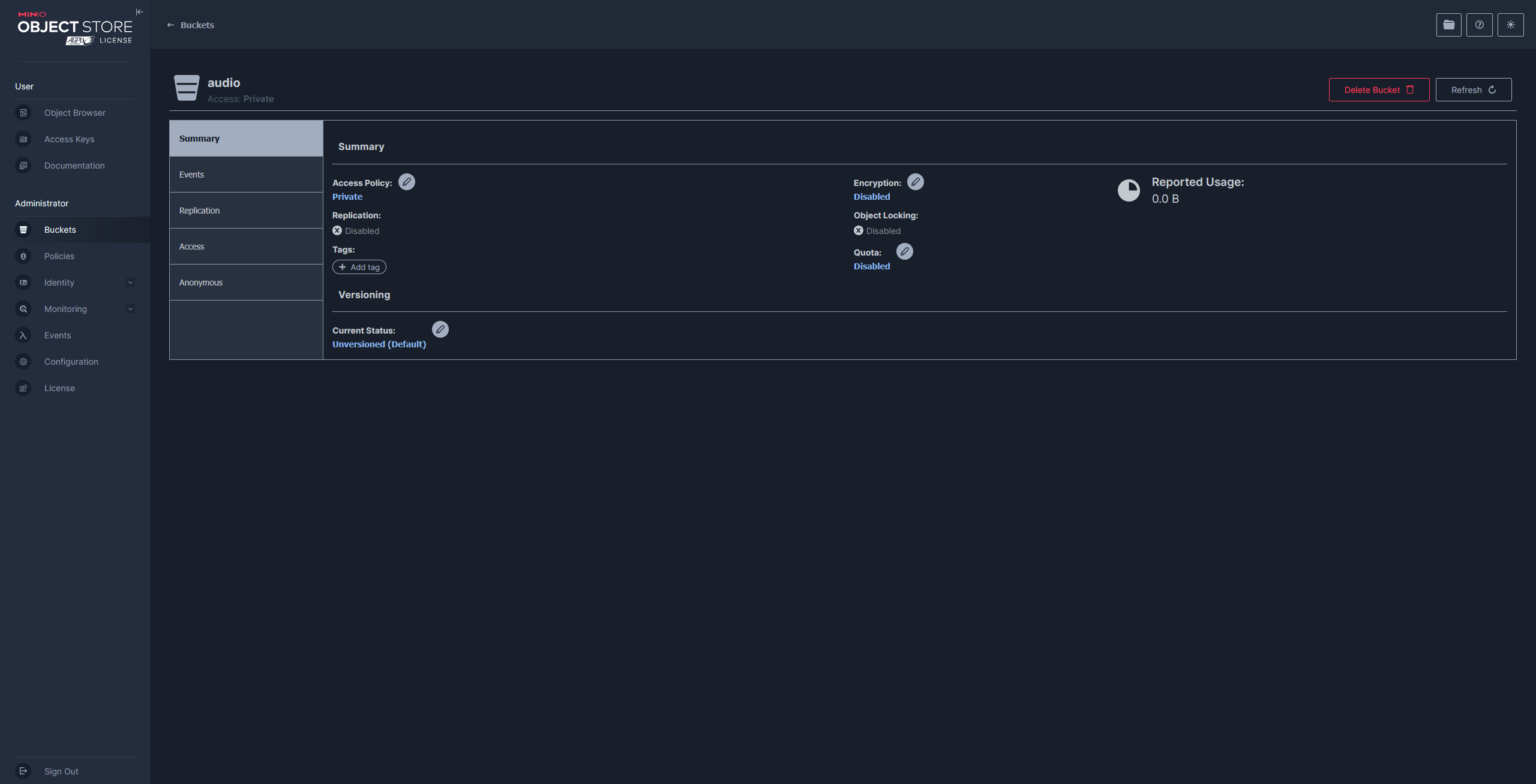
Select events
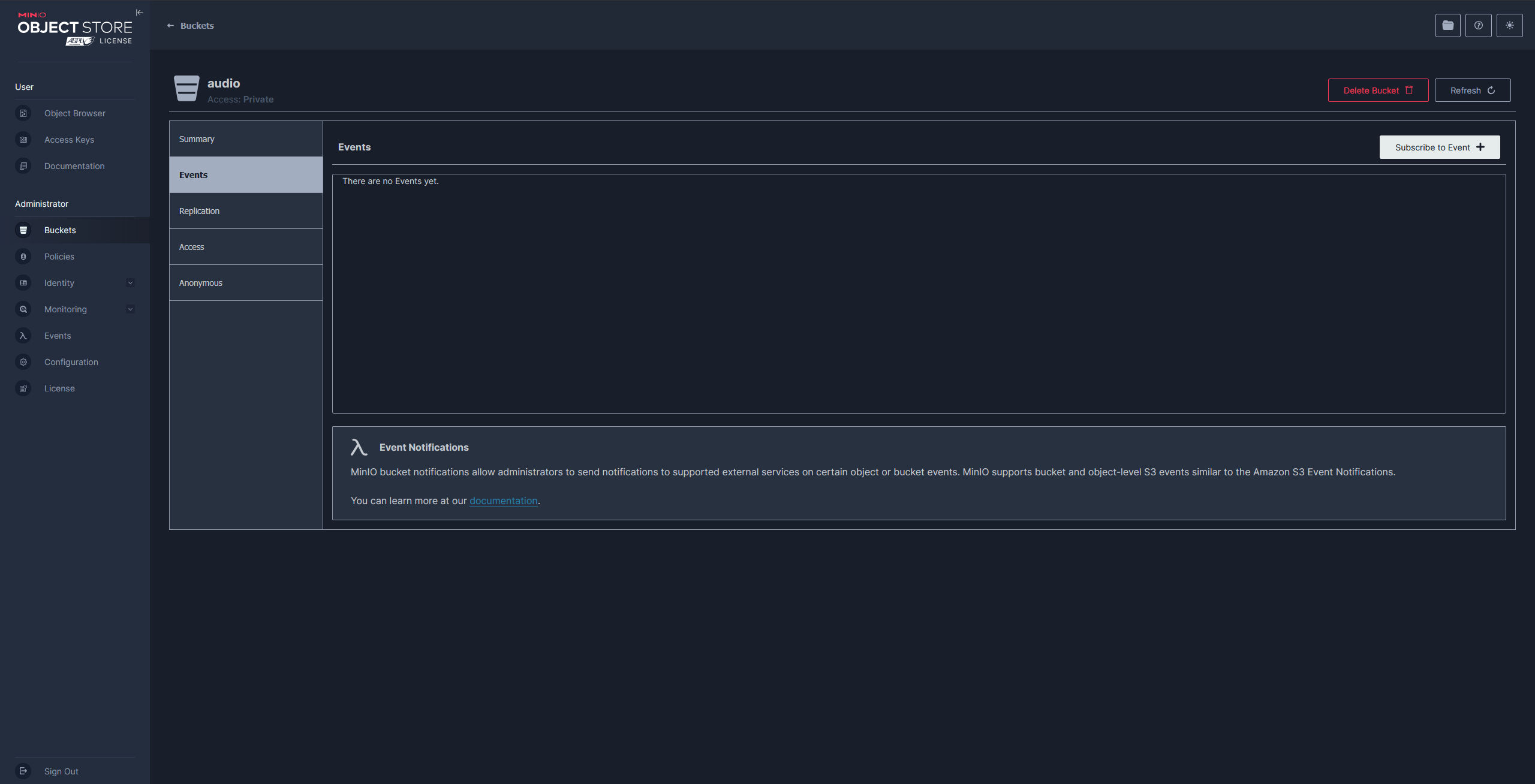
Press subscribe to event
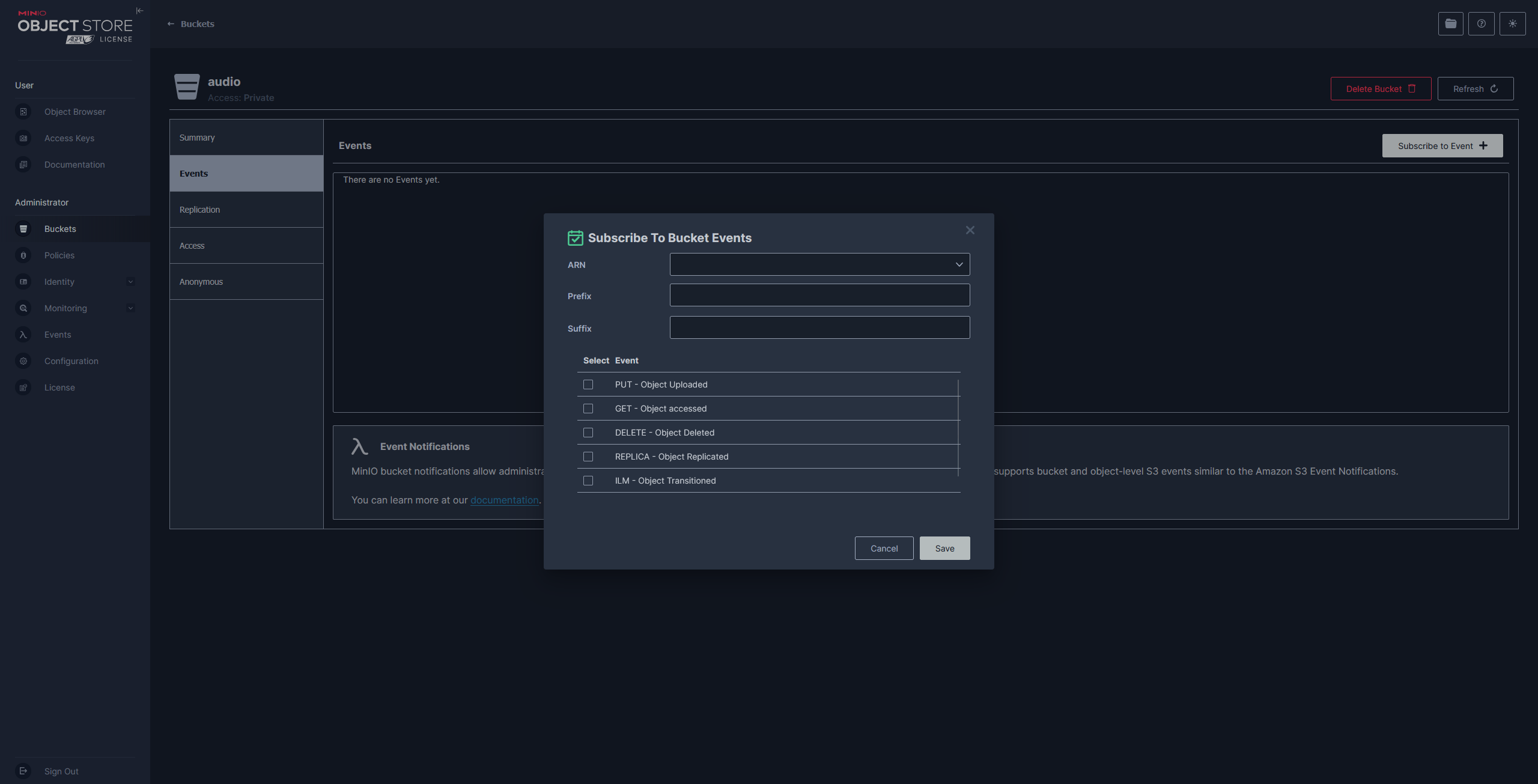
For APN select
arn:minio:sqs::onObjectCreated:webhookleave Prefix and Suffix empty Select Event PUT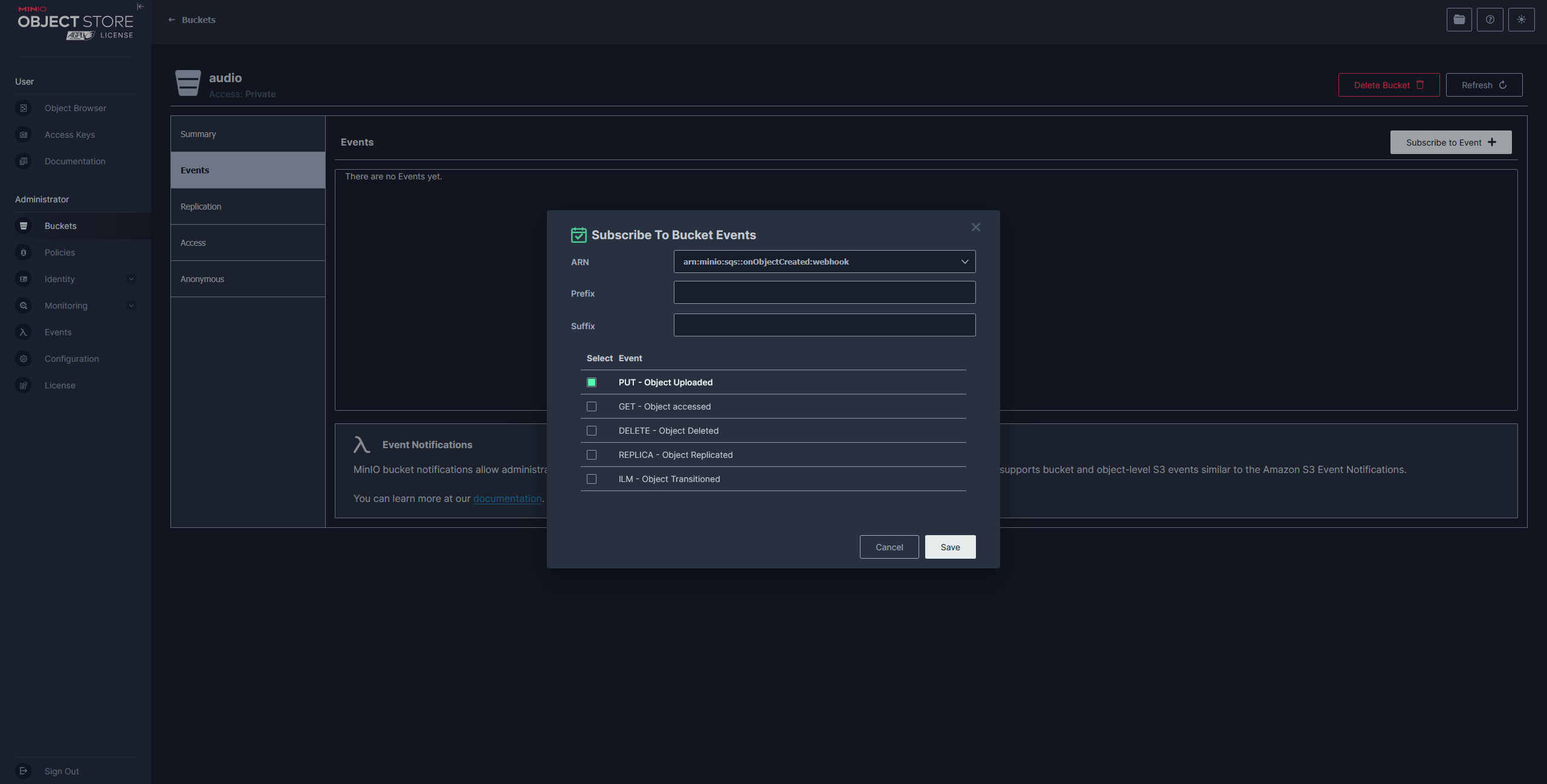
Press Save
Repeat this for the buckets document, presentation and video.